
Gmail forwarding rules can keep sending someone new mail after you regain access to your account. On a trusted computer, inspect both the main forwarding setting and the filters that act on selected messages. A password change helps regain control of sign-in, but you still need to remove any mail instructions an intruder created.
Quick answer. Secure the Google Account, then open Gmail’s full settings in a desktop browser. Disable unfamiliar automatic forwarding, delete unauthorized forwarding filters and check for delegates or connected apps you do not recognize. Removing a rule prevents future copies through that route. Messages already delivered to another mailbox remain outside your control.
Table of contents: Check Gmail forwarding rules in both settings tabs · Read each filter as a sentence · Check who else can read the mailbox · Common mistakes after removing a rule · Pro tips for working out what was exposed · FAQ · Confirm the account is back under your control
Check Gmail forwarding rules in both settings tabs
First make sure you are in the correct mailbox. Click your profile picture and read the full address. If you use a personal Gmail address and a work account in the same browser, it is surprisingly easy to inspect the wrong one. For a managed work or school account, alert your administrator promptly through a trusted channel.
If you are locked out, start Google Account recovery by opening Google yourself. Once you can sign in on a trusted device, change the compromised password to a unique one. Review recent security activity, devices, recovery email and phone number, and two-step verification methods. Sign out unfamiliar sessions and remove unauthorized changes. Google’s compromised-account recovery instructions.
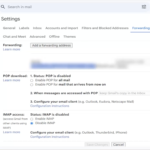
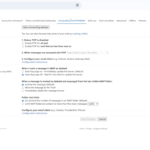
Now open Gmail, select the settings gear and choose See all settings. The tab may be labeled Forwarding and POP/IMAP or Forwarding. Look for whether forwarding is active, the destination selected and what happens to the Gmail copy. Also note any unfamiliar destination available in the selector. A saved address and an active forwarding instruction are different findings.
If the active destination is unauthorized, select Disable forwarding and click Save Changes at the bottom. Return to the tab to confirm it saved. Remove the unfamiliar destination if the menu offers that option. Continue into filters even when the main switch was already off. Google’s instructions for automatic and filtered forwarding.
Read each filter as a sentence
In Filters and Blocked Addresses, read each row from its matching conditions through its actions. A row may apply only when a sender, subject or phrase matches. Look for actions that forward, skip the inbox, mark as read or delete. A filter that only archives a newsletter can be harmless. Check the combination of match, action and destination.
For example, imagine a filter that matches the subject “invoice” and forwards matching mail to an unfamiliar external address. It also skips the inbox. Everyday correspondence still looks normal, while incoming bills disappear from the main list and reach someone else. This is why Gmail forwarding rules deserve a second check beyond the global switch.
| Finding | Action |
|---|---|
| Unknown forward on every new message | Disable forwarding, save and review the address list |
| Unknown filter forwards selected messages | Record its criteria and destination, then delete and confirm |
| Filter hides security notices without forwarding | Remove the unauthorized action and look for affected mail |
| Legitimate accounting or family filter | Verify the exact destination and retain it if intended |
For confirmed unauthorized Gmail forwarding rules, use Delete beside the filter and confirm. Reopen the list to check the result. If you need to preserve a work incident record, note the original criteria and destination through your internal security process without delaying containment. Avoid sending the details through the mailbox you suspect is still accessible.
Check who else can read the mailbox
- Inspect delegated access. In full Gmail settings, open Accounts and Import or Accounts, then the section for granting access to your account. Remove unfamiliar delegates. A delegate can read, send and delete messages without relying on Gmail forwarding rules.
- Review apps with Google Account access. Check what each app can access. Revoke an unfamiliar integration that can read mail and review any app passwords you do not recognize. Mail can reach a third-party client without an automatic copy appearing in the forwarding tab.
- Inspect recovery and sign-in methods. Make sure every recovery address and phone belongs to you. Check the enrolled devices and authentication methods. Enable two-step verification if needed and keep recovery information somewhere you can reach independently of Gmail.
- Look for affected messages. Use All Mail, Spam and Trash, and search for terms from the suspicious filter. Check Sent for messages you did not write. If a payment or password reset may have been intercepted, contact that service directly using a trusted app or known contact details.
Common mistakes after removing a rule
Trusting the absence of a warning banner. Google shows a forwarding notice for the first week after forwarding is enabled. Gmail forwarding rules can therefore deserve attention even if the inbox opens without a warning. Inspect the settings themselves and save any authorized changes.
Using a test email as proof nobody received a copy. Receiving a message in your inbox tells you it reached you. A separate copy could still be delivered elsewhere. Check the saved settings and any delegated or app access. Do not send a real reset link, bank statement or account code as a test.
Treating a shared surname as verification. A destination may resemble a colleague’s or family member’s address but differ by a letter or domain. Confirm important addresses through another trusted channel. If the account handles invoices, verify any changed payment instructions independently before acting on them.
Pro tips for working out what was exposed
Write down the criteria and the earliest suspicious account activity you can identify. Search for messages that would have matched during that period. The results help prioritize which services or people to contact. They cannot establish exactly which copies reached the other person or whether they opened them.
Prioritize the accounts that use this address for resets, especially financial services and password managers. Change any reused passwords from a trusted device. If Gmail forwarding rules involved a business mailbox, give the administrator the affected account, approximate times and the destination so they can investigate organization-level routing and available logs.
FAQ
Does changing my password remove Gmail forwarding rules?
Check the rules yourself after changing your password. Review both account-wide forwarding and filters, then inspect access granted to delegates or third-party apps. A password change addresses a sign-in credential. It does not give you an inventory of other ways mail may have been copied or accessed.
Why can mail still be forwarded when the main setting is off?
Gmail allows filters to forward only messages that match conditions, even with account-wide forwarding turned off. Inspect each filter’s actions and destination. If you use a managed mailbox, your administrator can also investigate routing outside your personal settings when the behavior continues.
Will deleting a filter recover the missing messages?

Deleting it changes future handling. Search All Mail and Trash for messages the filter archived or deleted, and restore any still available. A message forwarded to another inbox cannot be recalled by removing the rule. Follow up separately on any sensitive information that may have left.
Can I reliably review every setting from the Gmail mobile app?
Use Gmail in a desktop browser for the full forwarding, filters and delegated-access review. If you are away from a computer, begin securing your Google Account on a trusted device, then complete the settings check as soon as you can access the full web interface.
Confirm the account is back under your control
Reopen both tabs and verify that only intended Gmail forwarding rules remain. Check that you recognize each recovery method and connected device, then follow up on the specific accounts whose messages matched the unwanted rule. Keep the incident note outside the mailbox until you finish those checks.
Really helpful breakdown! Most people stop right after changing their password and completely forget to audit the ‘Filters and Blocked Addresses’ tab. The tip about reading each filter as a sentence is a great way to catch hidden rules that skip the inbox. Thanks for sharing such a clear checklist
Thakns